

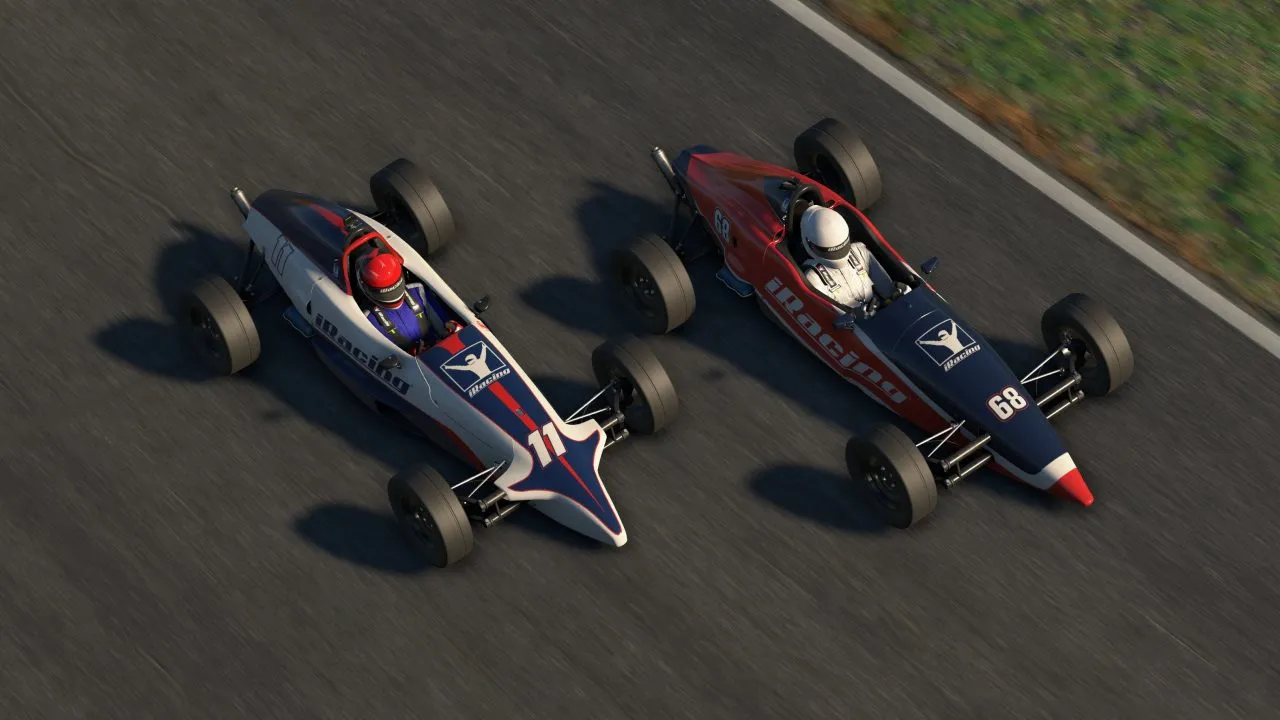

If you’ve ever jumped into an iRacing session and thought everything looked too warm, dull, or covered by a kind of yellowish filter, you’re not the only one. It’s a fairly common feeling, especially on certain monitors, factory color settings, or lighting conditions inside the simulator.
I like iRacing to look natural, but also competitive. I’m not after an exaggerated image or arcade colors. What really matters is that the asphalt, curbs, shadows, braking references, and the cars ahead read better. For that, NVIDIA Filters can be a quick and fairly effective solution.
The key is not to overdo it. To correct iRacing’s yellow tint, you usually don’t need a huge stack of filters. The most useful approach is normally a simple combination of Color and Brightness/Contrast, with a bit of Sharpen only if you really need it.
Why iRacing can look so yellow
Before touching anything, it’s worth understanding the problem. The yellow tint doesn’t always come from iRacing alone. It can show up for several reasons:
- The monitor comes too warm from the factory. Many panels ship configured with a warmer-than-ideal color temperature.
- The simulator can look more yellowish at certain times of day. Sunsets, sessions with a low sun, or intense lighting can accentuate that tone.
- The panel matters a lot. An IPS, a VA, an OLED, or an ultrawide don’t display the image the same way.
- Windows, NVIDIA, or the monitor’s own settings may be altering the image. Sometimes the problem isn’t in iRacing, but in a combination of color profiles, brightness, contrast, and the monitor’s picture mode.
That’s why, before applying an aggressive preset, the ideal thing is to start from a reasonable baseline: a neutral picture mode on the monitor, controlled brightness, and no vivid, cinema, or gaming extreme modes enabled.
The quick fix: using NVIDIA Filters
NVIDIA Filters, also known as NVIDIA Freestyle, lets you apply visual filters in real time from the NVIDIA overlay. In iRacing, the idea isn’t to transform the game completely, but to correct small visual problems.

To remove the yellow tint, the most important filter is Color. There you can slightly cool the temperature and adjust the vividness of the image. Then, with Brightness/Contrast, you can open up shadows, control highlights, and improve overall readability.
My recommendation is to start gently. If in five minutes the simulator looks cleaner, less yellow, and you still keep good performance, you already have a real improvement.
How to open NVIDIA Filters in iRacing
To apply the filters, first enter an iRacing session. It can be Test Drive, a practice, or any session where you can calmly compare the image.
Press Alt + F3 to open the NVIDIA filters directly. You can also use Alt + Z to open the NVIDIA overlay and enter the filters section from there.
Once inside, choose a free profile and add the filters in this order:
- Color
- Brightness/Contrast
- Sharpen, only if you need more definition
- Details, optional and in very small doses
The important thing is that you don’t start by adding too many filters. To correct the yellow, Color + Brightness/Contrast is usually enough.
Recommended preset to remove iRacing’s yellow tint
This preset is meant as a starting point for most SDR monitors, especially IPS or screens that look somewhat warm.
Color settings
- Tint Colour: 0%
- Tint Intensity: 0%
- Temperature: -10
- Vibrance: 8
The most important adjustment here is Temperature -10. That value slightly cools the image without making it bluish. If your monitor still shows too much yellow, you can go down to -12 or -15, but I don’t recommend starting more aggressively.
Vibrance at 8 helps recover some color without making the image artificial. If you notice the cars, curbs, or trees look too saturated, lower it to 4 or even to 0.
Brightness/Contrast settings
- Exposure: 6%
- Contrast: 10%
- Highlights: -25%
- Shadows: 18%
- Gamma: -6
Here the goal is to balance the scene. Highlights -25% helps control overly bright areas, especially on sunny days or with strong reflections. Shadows 18% opens up the dark areas a bit, which can help you see references, track edges, and cars in shadowed areas better.
The Gamma -6 value helps keep the image from looking washed out. If you notice everything gets too dark, leave it at 0.
Optional Sharpen setting
- Sharpen: 10% to 15%
I don’t recommend using too much sharpen. In iRacing, excess sharpness can create halos on fences, trees, white lines, and the edges of the cars. For racing, more sharpness doesn’t always mean more clarity.
My sweet spot would be between 10% and 15%. If you use a high resolution or a very sharp monitor, even 5% can be enough.
Complete quick preset
If you just want to copy values and try, start with this:
Color
- Tint Colour: 0%
- Tint Intensity: 0%
- Temperature: -10
- Vibrance: 8
Brightness/Contrast
- Exposure: 6%
- Contrast: 10%
- Highlights: -25%
- Shadows: 18%
- Gamma: -6
Sharpen
- Sharpen: 10%
This preset doesn’t try to make iRacing look like a different game. Its goal is simpler: remove the yellow tint, improve visual readability, and keep a natural image.
A more aggressive setup if iRacing is still very yellow
If your monitor is very warm or you use a large VA panel, the previous preset might fall short. In that case, you can try this cooler variant:
- Temperature: -15 to -18
- Vibrance: 0 to 4
- Highlights: -35%
- Shadows: 30% to 40%
This configuration can work well on monitors where whites look cream, the asphalt looks too golden, or highlights wash out the image too much. That said, watch that the whites don’t turn bluish or gray. If that happens, you’ve cooled the image too much.
What to do if you use OLED or HDR
If you have an OLED or play with HDR, it’s worth being much more careful. In these cases, a setup designed for SDR can make the image worse.
On OLED, the blacks are already very deep, so you don’t need to push contrast or shadows as much. I’d use something more conservative:
- Temperature: -4
- Vibrance: 0
- Highlights: -35% to -45%
- Shadows: 5% to 10%
- Sharpen: 5%
The idea on OLED isn’t to lift the whole image, but to clean up the excess warmth without destroying the blacks.
If you use HDR, don’t mix settings carelessly. If you try RTX HDR from NVIDIA, make sure you aren’t also applying the simulator’s internal HDR at the same time. It’s best to compare one option against the other, not add them together.
How to tell if the filter is well tuned
Don’t rely on just one pretty lap. The best way to test the filter is to repeat several scenes.
First try a daytime session with sun. Look at the curbs, the white lines, and the braking boards. Then try a sunset, because that’s where you quickly notice if the preset turns everything too orange. Then try a night session and, if you can, a session with rain.
A good setting must meet three things:
- The yellow tint clearly drops.
- Whites still look white, not blue.
- The image looks more legible, not just more flashy.
If the track looks spectacular but you lose detail in shadows, halos appear, or the colors look unreal, the preset is too strong.
Watch out for performance
NVIDIA filters can affect performance. On some setups the loss will be almost imperceptible, but on others it can be quite noticeable, especially if you’re already tight on FPS or use triple monitor, ultrawide, VR, or rain.
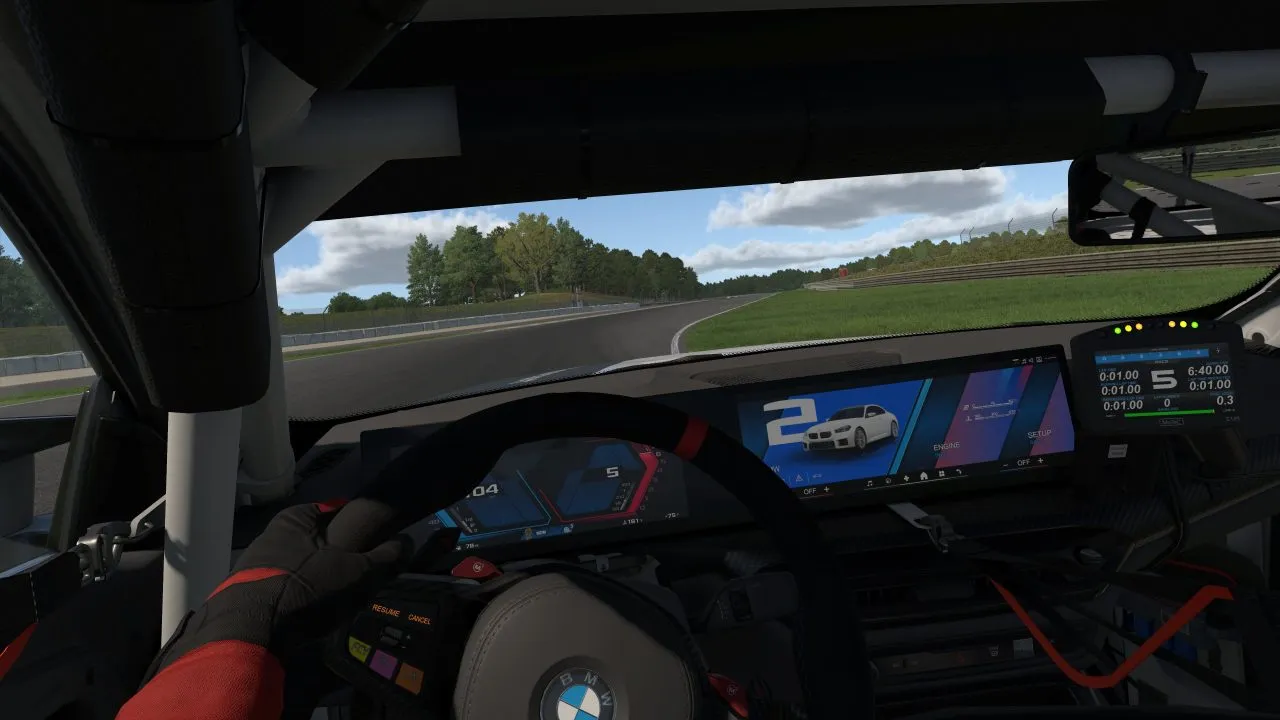
That’s why I always recommend testing with a real comparison. Turn the filter on and off in the same session, watch the FPS, check smoothness, and pay attention to the 1% low if you use measurement tools.
For racing, a filter is only worth it if it improves visibility without breaking stability. If the image looks better but you get hitches, stutter, or heavy FPS drops, it’s not a real improvement.
What to do if NVIDIA Filters doesn’t appear in iRacing
Sometimes the overlay opens, but the filters don’t appear or the window stays empty. In that case, try the basics:
- Update the NVIDIA App or the drivers.
- Open iRacing first and enter a real session.
- Press Alt + F3 inside the session, not from the main menu.
- Close and reopen the overlay.
- Restart iRacing if the filters still won’t load.
It can also help to check that the NVIDIA overlay is enabled and that there are no conflicts with other overlays. iRacing is sensitive to certain overlays, so the cleaner the environment, the better.
My final recommendation
To remove iRacing’s yellow tint, there’s no need to complicate things. Start with a gentle setting of Temperature between -8 and -12, add a bit of Vibrance, control the Highlights, and slightly open the Shadows.
My base preset would be this:
- Temperature: -10
- Vibrance: 8
- Exposure: 6%
- Contrast: 10%
- Highlights: -25%
- Shadows: 18%
- Gamma: -6
- Sharpen: 10%
From there, adjust according to your monitor. If it still looks yellow, lower the temperature a bit more. If it looks artificial, reduce vibrance and contrast. If you lose performance, remove Sharpen and leave only Color + Brightness/Contrast.
In the end, the best filter for iRacing isn’t the most spectacular one. It’s the one that lets you see better, read the references sooner, and keep a stable image throughout the entire race.
See you on the track!
This website uses affiliate links which may earn a commission at no additional cost to you.
If only u applied so much effort to the other articles! This is hilarious
Wow what a brilliant article……….