
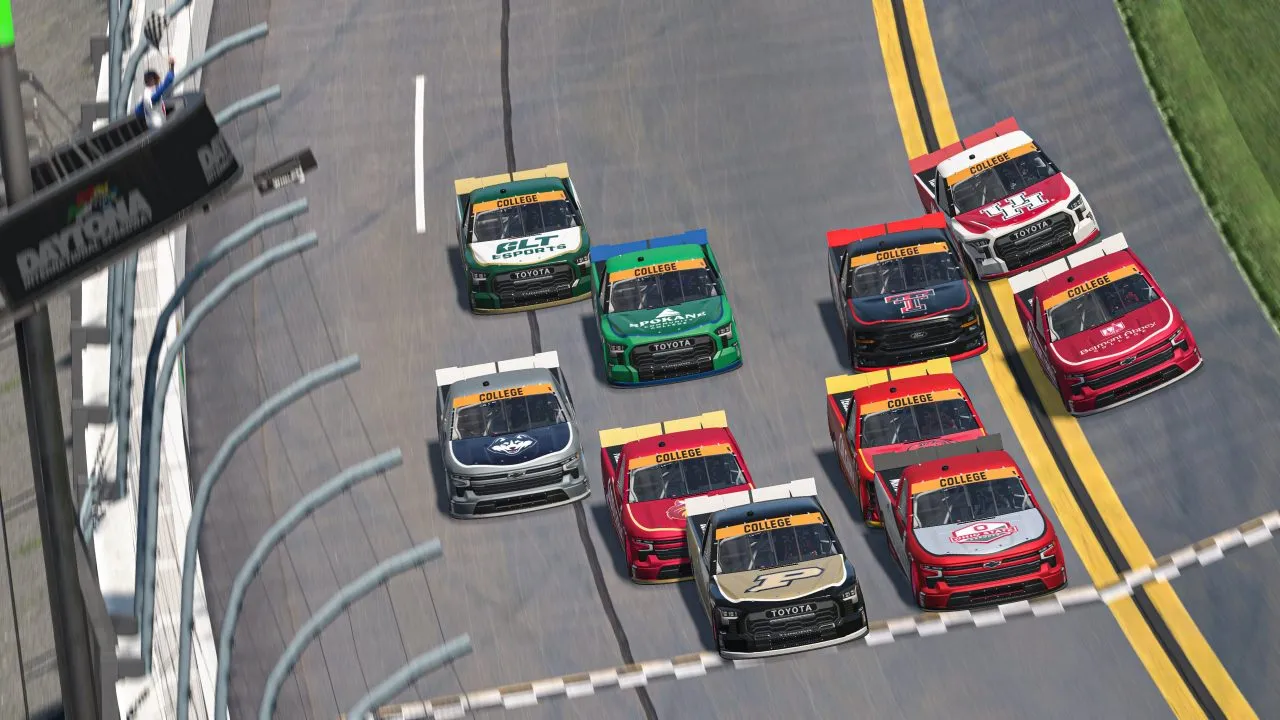
VR used for racing simulations immerses you into the action like no other device. I’ve been a regular user since the release of the first commercial model, the Oculus CV1, and since then I’ve remained loyal to the incredible sensations that VR HMDs offer for virtual motorsport.
Evolution
After the first years of immaturity, the sector has reached a certain level of stability. Once the metaverse fever passed and the push to move everything into VR faded, we saw there are limits to what we can expect. However, there are two fields where VR fits perfectly — simracing and simflight.
Pimax has focused precisely on this niche market. I already told you about the Crystal Light’s advantages in my review, with their amazing clarity and image improvements compared to previous HMDs. Let’s see how we can make the most of them for iRacing.
Performance
Pimax headsets have excellent specifications, which means that if you want to fully take advantage of them, you’ll need high-end graphics cards. I’m referring to “enthusiast” models from Nvidia and AMD, starting from the RTX 3090 upward.
- RTX 3090
- RTX 4080
- RTX 4080 Super
- RTX 4090
- RTX 5070 Ti
- RTX 5080
- RTX 5090
- AMD RX 9070XT
It’s possible to use a lower-end GPU, but the level of fine-tuning and accuracy in configuration tools must be extreme, and it might not be worth it if you want to focus on driving rather than configuring.
For Nvidia cards, I recommend driver version 566.36, which provide good performance with few bugs. I’m not familiar with the recommended version of AMD Adrenalin, sorry.
Configuration in Pimax Play
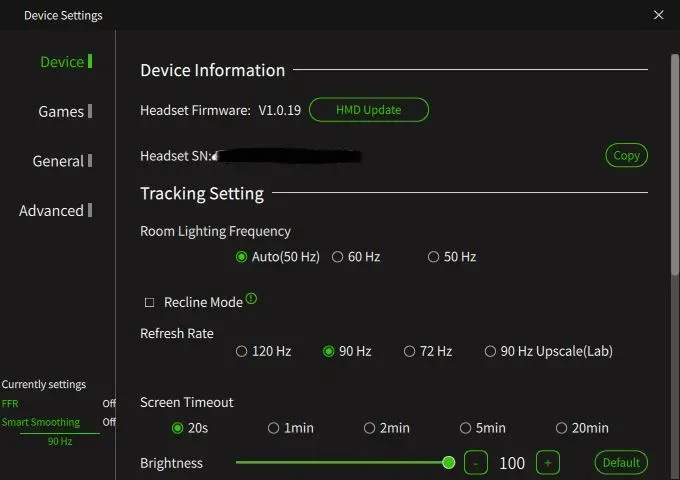
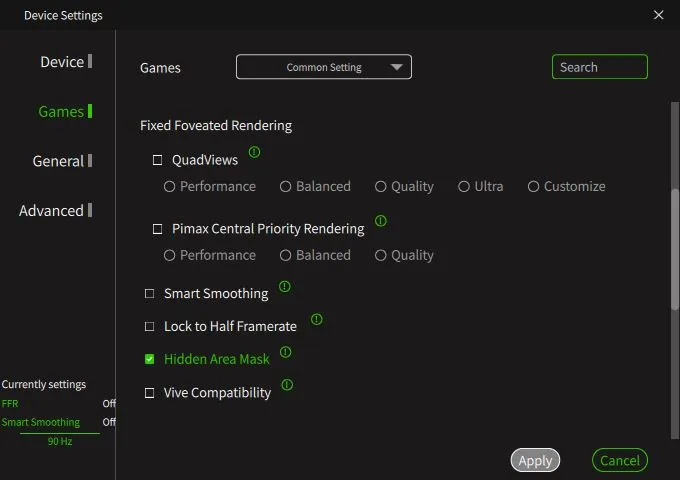
In VR, what we always aim for is maximum smoothness and refresh rate. It greatly enhances immersion and helps prevent discomfort such as dizziness, eye strain, or headaches. To ensure a minimum level of quality, I recommend the following settings:
- 90 Hz
- Smart Smoothing disabled
- FFR disabled
- Set Pimax as Default OpenXR Runtime
- Quad Views disabled (enable foveated rendering in iRacing)
Configuration in iRacing
The number of parameters to check in iRacing is overwhelming. There are many, but one of the most useful improvements introduced in the latest updates focuses specifically on VR. The foveated rendering option — which maximizes detail only where the user looks — is by far the best aid to maintain a constant frame rate. Here you can see screenshots with recommended settings from which to start increasing gradually.
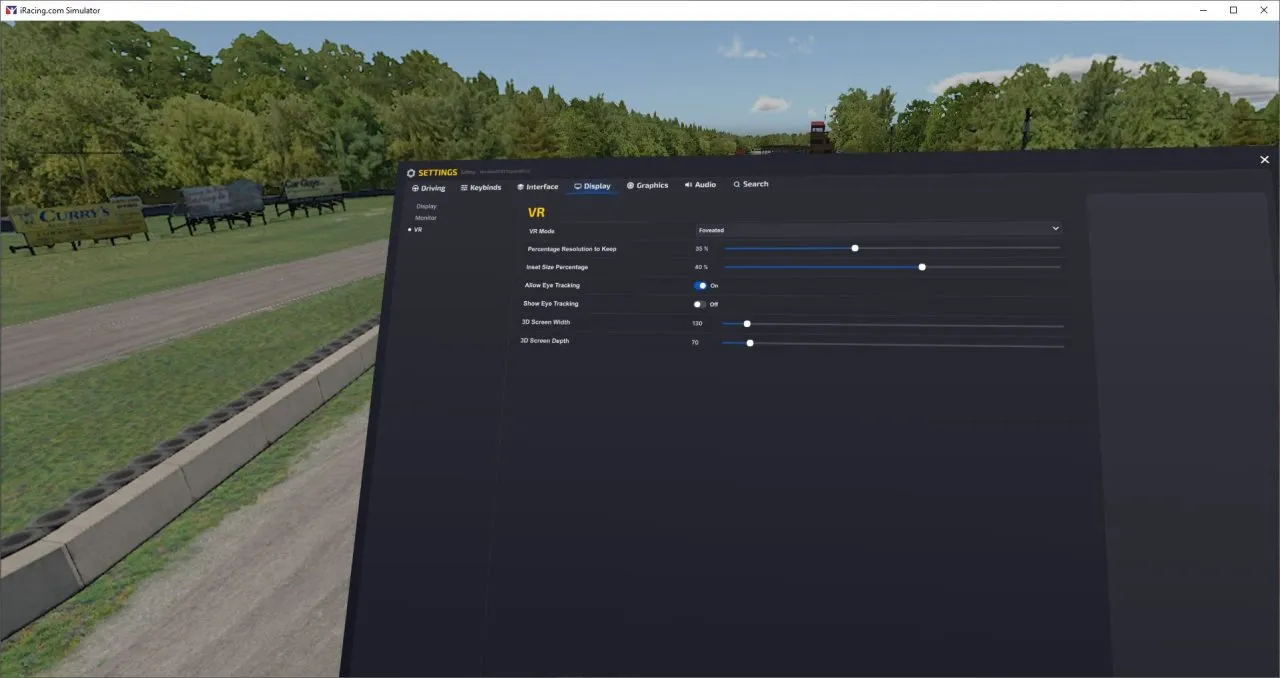
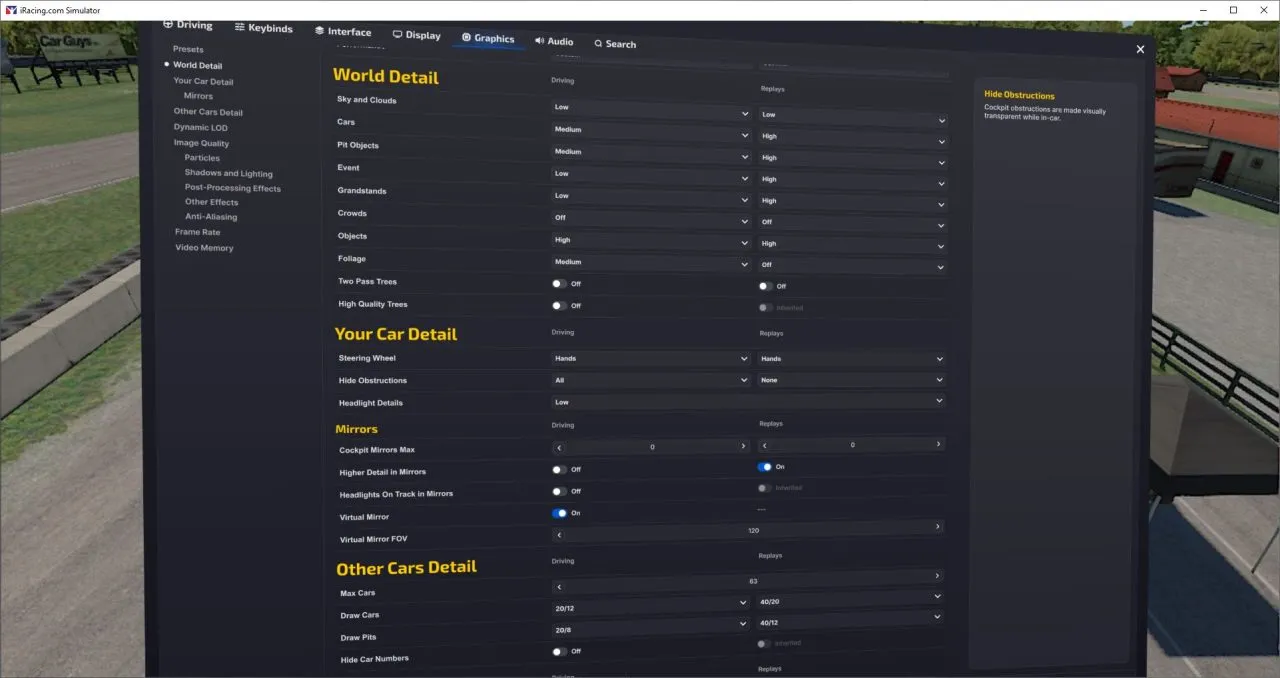
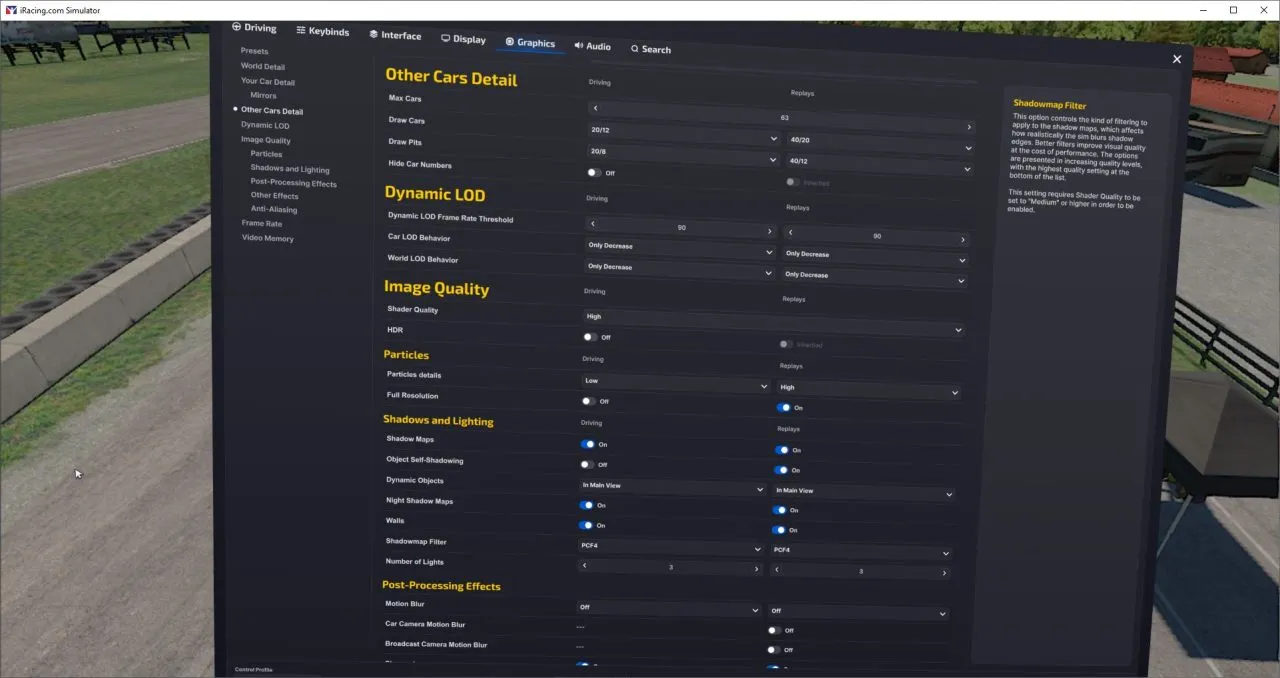
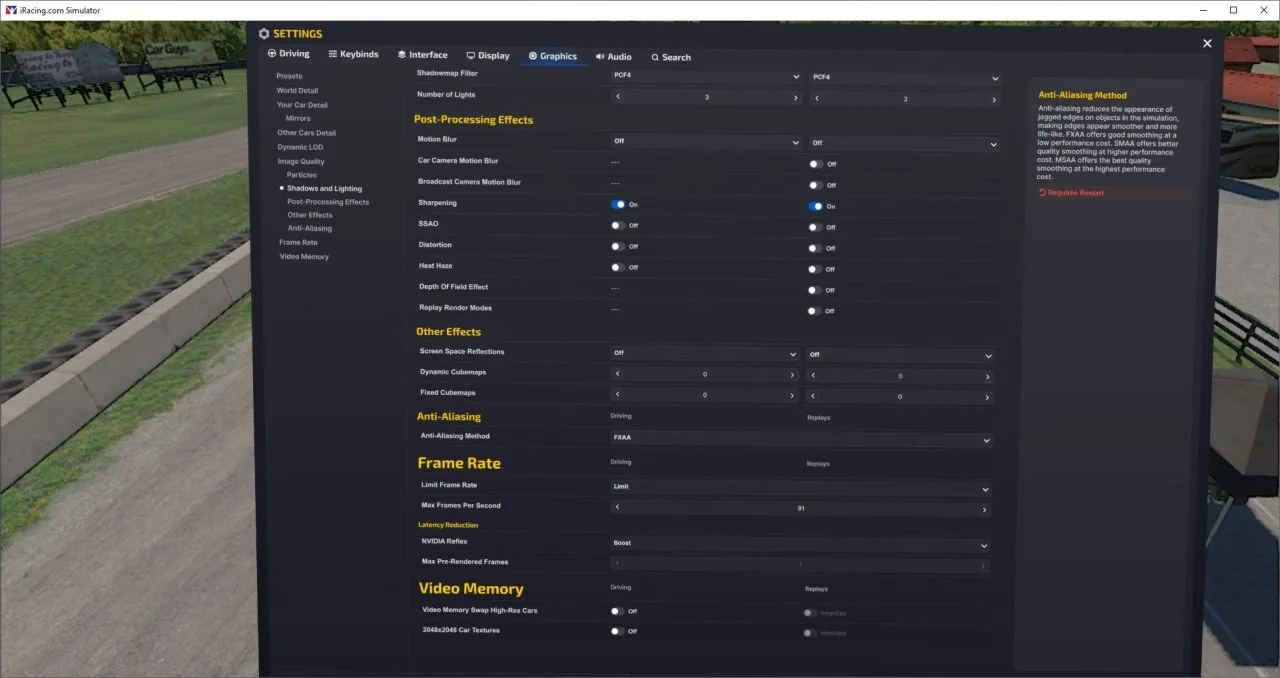
To verify that the frame rate remains consistent, I create an AI race with the maximum number of cars that the system will “draw” and check whether FPS remain stable from the start to the first two laps. With that, and by observing your PC’s resource monitor, you’ll get a clear picture of whether your setup supports the selected options.
I always recommend keeping GPU usage below 80–85% to leave some margin for unexpected system loads.
Conclusions
Summing up what we’ve covered and what you mainly want to start with:
- Minimum GPU: Nvidia RTX 3090
- Nvidia drivers 566.36
- Use Sysinternals Process Explorer to watch the GPU and CPU use
- 90Hz in Pimax Play (72Hz if you are struggling)
- Foveated rendering enabled in iRacing
- Mirrors disabled (except virtual mirror)
- Test performance using AI races
With this setup, you can fine-tune your experience to match your hardware. Enjoying VR with stable frame rates will give you the best immersion any device can offer. Once you achieve that baseline, why not try 120Hz, improve shader quality, or enhance environmental details? Keep experimenting and make the most of your investment to enjoy your hobby fully.
You can join iRacing by clicking this link with 40% OFF
This website uses affiliate links which may earn a commission at no additional cost to you.